RAG (Red, Amber, Green) Status Configuration is a critical feature in ReadyWorks Report Builder that enables visual representation of asset status or readiness. This feature is particularly useful for quickly assessing the state of assets across large environments, making it invaluable for operators managing complex IT landscapes.
RAG statuses are typically used to indicate:
- Red: Critical issues or not ready
- Amber: Warnings or partially ready
- Green: No issues or fully ready
To implement RAG Status Configuration:
1 - Define RAG Statuses:
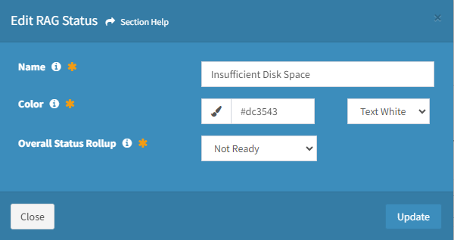
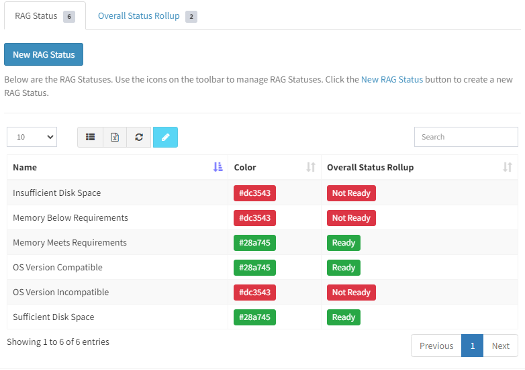
First, you need to create the RAG statuses in the ReadyWorks configuration. Navigate to the admin section and locate the RAG Status configuration area. Here, you can define statuses such as:
- Sufficient Disk Space (Green)
- Insufficient Disk Space (Red)
- Memory Meets Requirements (Green)
- Memory Below Requirements (Red)
- OS Version Compatible (Green)
- OS Version Incompatible (Red)
For each status, you'll specify a name, color (by hexadecimal value), and whether it contributes to a "Ready" or "Not ready" overall roll-up status.
2 - Create Custom Status Columns
In your report, add custom status columns that use these RAG statuses. For each column:
- Select the field it's based on (e.g., 'Disk Space')
- Map field values to your defined RAG statuses
- Configure how null or unexpected values should be handled
3 - Implement Overall Status
Create an overall status column that aggregates multiple custom status columns. This provides a high-level view of asset readiness. Typically, an asset's overall status is determined by its "worst" individual status (e.g., if any status is Red, the overall status is Red).
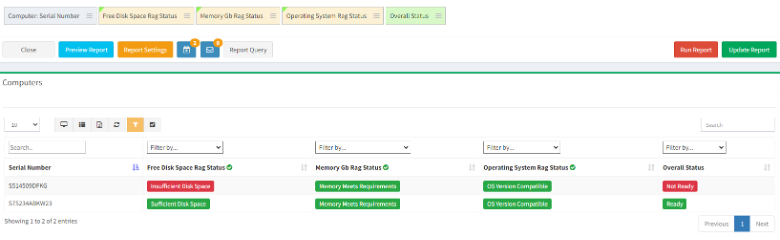
RAG Status Configuration is particularly powerful when combined with filtering and sorting features. For example, you can quickly filter to show all assets with a Red overall status, allowing you to focus on critical issues first.
Best Practices for RAG Status Configuration:
- Keep it simple: Use clear, consistent criteria for each status
- Align with business needs: Ensure your RAG criteria reflect actual operational requirements
- Update regularly: Review and adjust RAG criteria as project needs evolve
- Document thoroughly: Maintain clear documentation of what each status means
- Use meaningful colors: Stick to standard color meanings (Red for issues, Green for good) to avoid confusion
- Consider accessibility: Ensure your color choices are distinguishable for color-blind users
By effectively implementing RAG Status Configuration, you create reports that allow for rapid assessment of your IT environment. This visual approach to data presentation enables operators to quickly identify areas requiring attention, prioritize actions, and track progress on large-scale projects.
Remember, while RAG statuses are powerful, they're a simplification of complex data. Always ensure that detailed information is available for drill-down when needed, allowing operators to understand the specifics behind each status indicator.