Action Buttons and Forms are powerful features in ReadyWorks Report Builder that transform static reports into interactive tools for data manipulation and workflow initiation. These features allow operators to take immediate action based on report data, streamlining processes and reducing the need to switch between multiple interfaces.
Action Buttons
Action Buttons are customizable elements that can be added to your reports to trigger specific actions or workflows. These buttons appear at the top of your report and become active when one or more rows are selected. Common use cases for Action Buttons include:
- Adding assets to a deployment wave
- Initiating a software installation
- Updating asset status
- Generating tickets in an integrated ITSM system
To add an Action Button to your report:
- Navigate to the Admin section and select 'Action Buttons'
- Choose 'New Action Button' or select from existing templates
- Configure the button's behavior using the provided scripting interface
- Add the button to your report in the Report Builder interface using the ‘Assign Buttons’ form

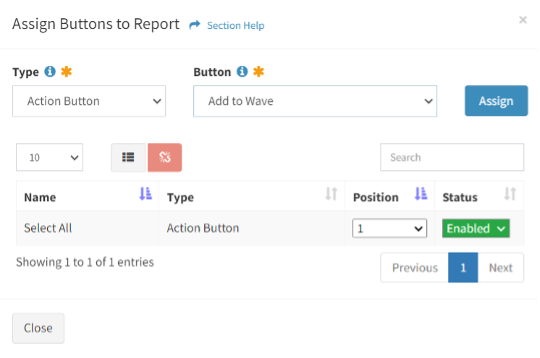
Action Buttons can be as simple or complex as needed. For example, a basic button might update a single field on selected assets, while a more advanced button could trigger a multi-step workflow involving several systems.
Forms
Forms in ReadyWorks allow for direct data entry or modification from within a report. They provide a structured way to update asset information without navigating away from the report context. Key aspects of Forms include:
- Custom field selection: Choose which fields to include in the form
- Field validation: Ensure data integrity by setting required fields and data formats
- Conditional logic: Show or hide fields based on user inputs
To create a Form:
- Go to the Admin section and select 'Form Builder'
- Choose 'New Form' and select the asset type it will modify
- Add and configure the desired fields
- Save the form and add it to your report using the 'Assign Buttons' form

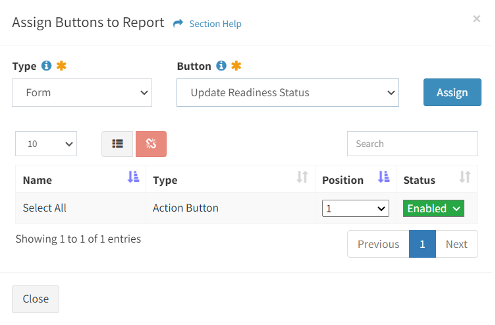
A practical example of combining Action Buttons and Forms might be a "Update Readiness Status" button that, when clicked, opens a form allowing the operator to input:
- Readiness status (dropdown)
- Comments (text area)
- Next review date (date picker)
This information would then be saved directly to the selected assets.
Best Practices for Action Buttons and Forms
- Keep actions focused: Each button should perform a specific, well-defined task
- Use clear naming conventions: Button labels should clearly indicate their function
- Implement error handling: Ensure your actions gracefully handle unexpected scenarios
- Consider permissions: Restrict access to sensitive actions as needed
- Test thoroughly: Validate that actions and forms behave correctly with various data scenarios
- Provide user feedback: Use pop-up messages to confirm successful actions or explain errors
When implementing Action Buttons and Forms, consider the workflow implications. For instance, in a Windows servicing project, you might create:
- An "Add to Wave" button that allows operators to add selected computers to a specific deployment wave
- An "Update Hardware Status" form that lets operators quickly update information about a computer's hardware readiness
These interactive elements can significantly reduce the time and effort required to manage large-scale IT operations. By bringing actionable capabilities directly into your reports, you enable operators to work more efficiently, reducing the risk of errors that can occur when switching between multiple systems or interfaces.
Remember, while Action Buttons and Forms are powerful tools, they should be implemented judiciously. Overloading a report with too many interactive elements can make it cluttered and confusing. Aim for a balance that enhances usability without overwhelming the user.