Filtering and Sorting are essential features in ReadyWorks Report Builder that allow you to refine and organize your data effectively. These tools help you focus on specific subsets of your data and arrange it in a meaningful order, making it easier to identify trends, locate specific information, and make informed decisions.
Filtering in Report Builder offers several levels of granularity:
- Global WHERE Clauses
- Top-Level Filters
- Column-Specific Filters
Global WHERE Clauses are applied to the entire report and act as a baseline filter. For example, you might want to exclude all decommissioned computers from your report. To set up a global WHERE clause:
- Navigate to the Report Settings
- Select 'Apply Global WHERE Clause'
- Choose the field (e.g., 'Lifecycle Status')
- Set the condition (e.g., 'Does not equal')
- Enter the value (e.g., 'Decommissioned')
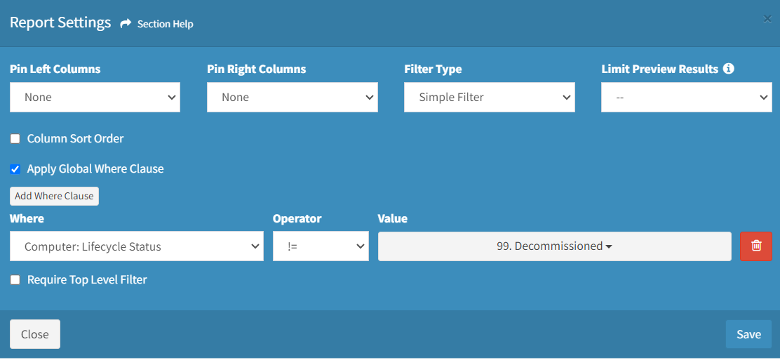
This ensures that regardless of other filters applied, decommissioned computers will never appear in your report.
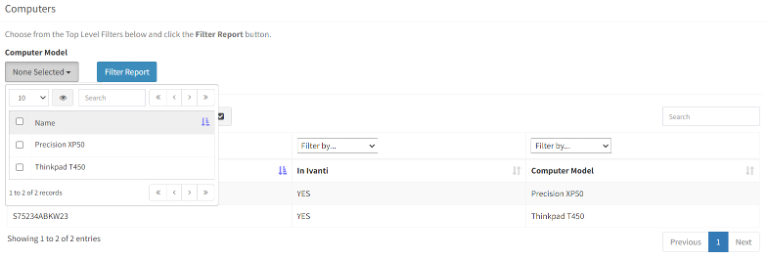
Top-Level Filters are dynamic filters that appear above your report data. These are particularly useful for fields that you frequently filter on, such as Location or Department. To create a top-level filter:
- Click on the column settings for your chosen field

- Select 'Top-Level Filter'
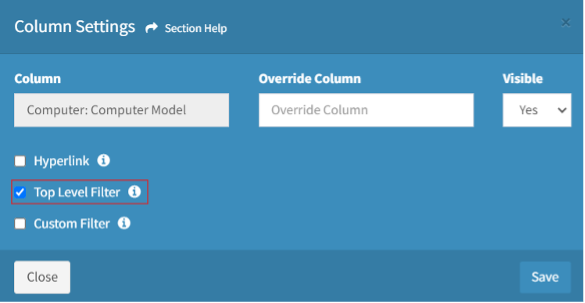
Once set up, users can easily filter the report without needing to modify its underlying structure.
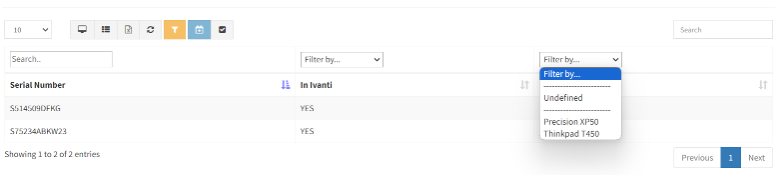
Column-Specific Filters are available on each column in your report. These allow for on-the-fly filtering as you work with your data. The type of filter available depends on the data type of the column:
- Text fields: Allow for text searches and pattern matching
- Numeric fields: Provide options for greater than, less than, equal to, etc.
- Date fields: Enable filtering by specific dates or date ranges
- Lookup fields: Offer selection from predefined values
Sorting in Report Builder helps you organize your data in a meaningful order. You can set default sort orders for your report, ensuring that data is always presented in a consistent, logical manner. To set a default sort:
- Go to Report Settings
- Select 'Column Sort Order'
- Choose the primary column to sort by and the sort direction (ascending or descending)
- Add additional sort columns if needed
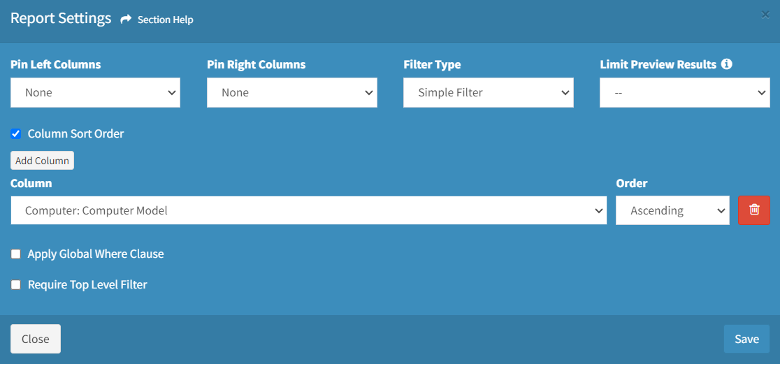
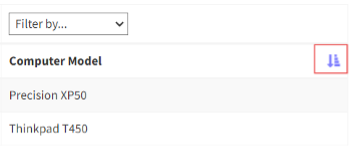
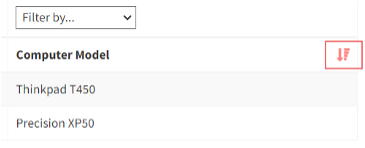
Users can also sort columns on-the-fly by clicking on column headers. This doesn't change the report's default sort order but allows for quick data exploration.
When implementing filtering and sorting, consider these best practices:
- Use global WHERE clauses for filters that should always apply
- Set up top-level filters for commonly used filtering criteria
- Choose a default sort order that makes sense for most use cases of the report
- Be mindful of performance impacts when filtering or sorting on columns from linked assets
Effective use of filtering and sorting can significantly enhance the usability and value of your reports. For instance, in a Windows servicing project, you might create a report with:
- A global WHERE clause to exclude virtual machines
- Top-level filters for Location and Department
- Column filters for OS Version and Last Login Date
- Default sorting by Computer Name
This setup allows operators to quickly drill down to specific subsets of computers, such as all Windows 10 machines in the Finance department that have been logged into within the last 30 days, sorted alphabetically by name.
By mastering these features, you can create dynamic, responsive reports that allow for efficient data analysis and support rapid decision-making in your IT operations.