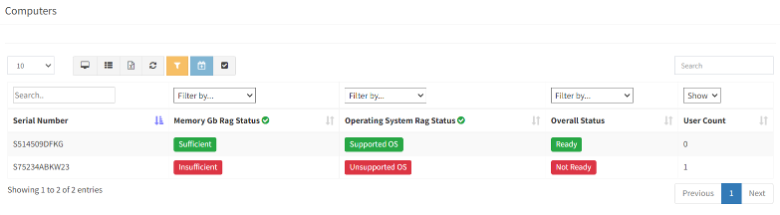
Column Customization is a key feature of ReadyWorks Report Builder that allows you to tailor the data displayed in your reports. This functionality enables you to select specific fields, create calculated columns, and implement custom statuses, ensuring your reports contain precisely the information needed for your operational tasks.
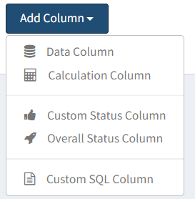
When customizing columns, you have several options:
- Data Columns
- Calculation Columns
- Custom Status Columns
- Overall Status Columns
Data Columns are the most straightforward type. These represent direct fields from your chosen data source and linked assets. For instance, if your primary data source is 'Computer', you might add columns such as:
- Computer Name
- IP Address
- Operating System
- Last Login Date
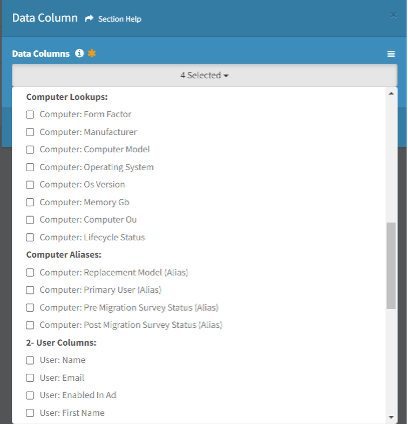
To add a data column, simply select it from the available fields list. Remember that the fields available depend on your primary data source selection and its linked assets.
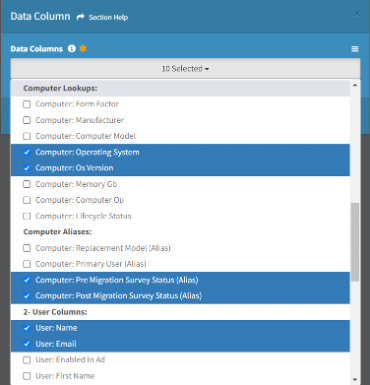
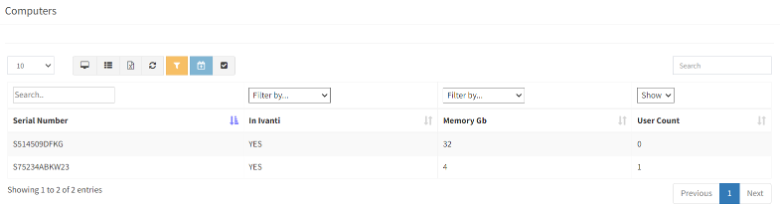
Calculation Columns allow you to perform count-related functions. A common use case is counting the number of applications installed on each computer. To create a calculation column:
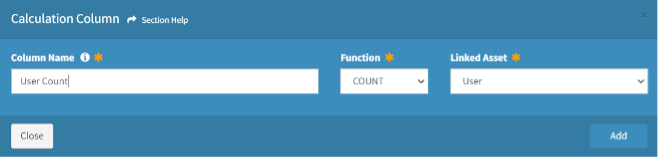
- Select 'Add Column' and choose 'Calculation Column'
- Name your column (e.g., "User Count")
- Select the asset type to count (in this case, 'User')
- Choose the calculation type (Sum)
Custom Status Columns are particularly useful for creating visual indicators of asset status or readiness. These often use a Red/Amber/Green (RAG) system to quickly convey information. For example, you might create a custom status column for "Windows 11 Upgrade Readiness" with the following logic:
- Green: Meets all upgrade requirements
- Amber: Meets some requirements, needs further investigation
- Red: Does not meet upgrade requirements
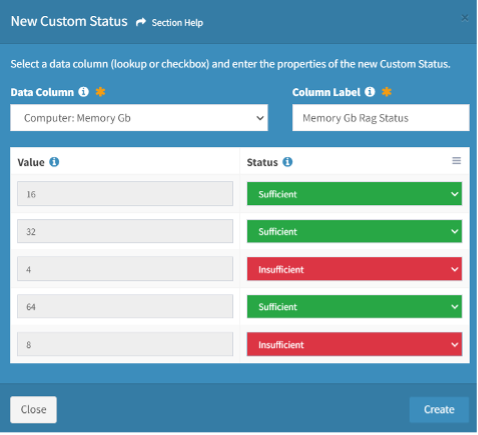
To create a custom status column, you'll need to:
- Define the status options in the ReadyWorks configuration
- Add a Custom Status Column to your report
- Set up the logic that determines each status
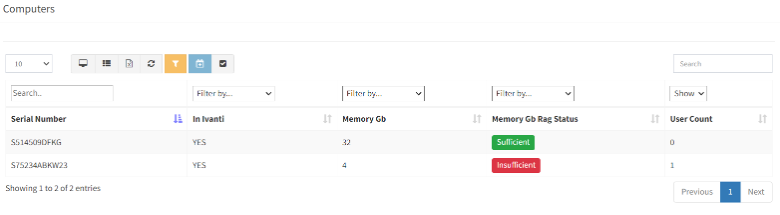
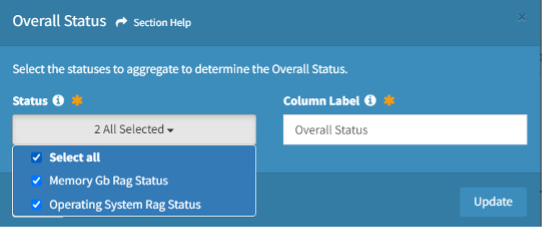
Overall Status Columns aggregate multiple custom statuses into a single column. This is valuable for providing a high-level view of asset readiness or health. The overall status typically reflects the "worst" status of its component columns. For instance, if an asset has multiple custom statuses and any one of them is Red, the overall status would be Red.
When customizing columns, consider the following best practices:
- Include only necessary columns to keep reports focused and performant
- Use meaningful names for calculated and custom columns
- Arrange columns in a logical order, typically with identifying information first
- Consider adding hyperlinks to key fields (like Computer Name) for easy navigation to asset details